Amazon Firestick & Fire TV Setup
1. Connect the Fire TV device to the internet and sign in to your Amazon account.
2. Search the Fire TV app store for a compatible IPTV player available for your device.
3. If your chosen player requires an alternate installation method, follow the permissions and installation instructions appropriate for your Fire OS version.
4. Open the player and choose its account, Xtream-style login or playlist option.
5. Enter the supplied Ultra 8K IPTV account details and save the profile.
6. Allow the playlist and EPG to load, then test several channels.
Android TV & Google TV Setup
1. Open the app store on your Android TV or Google TV device.
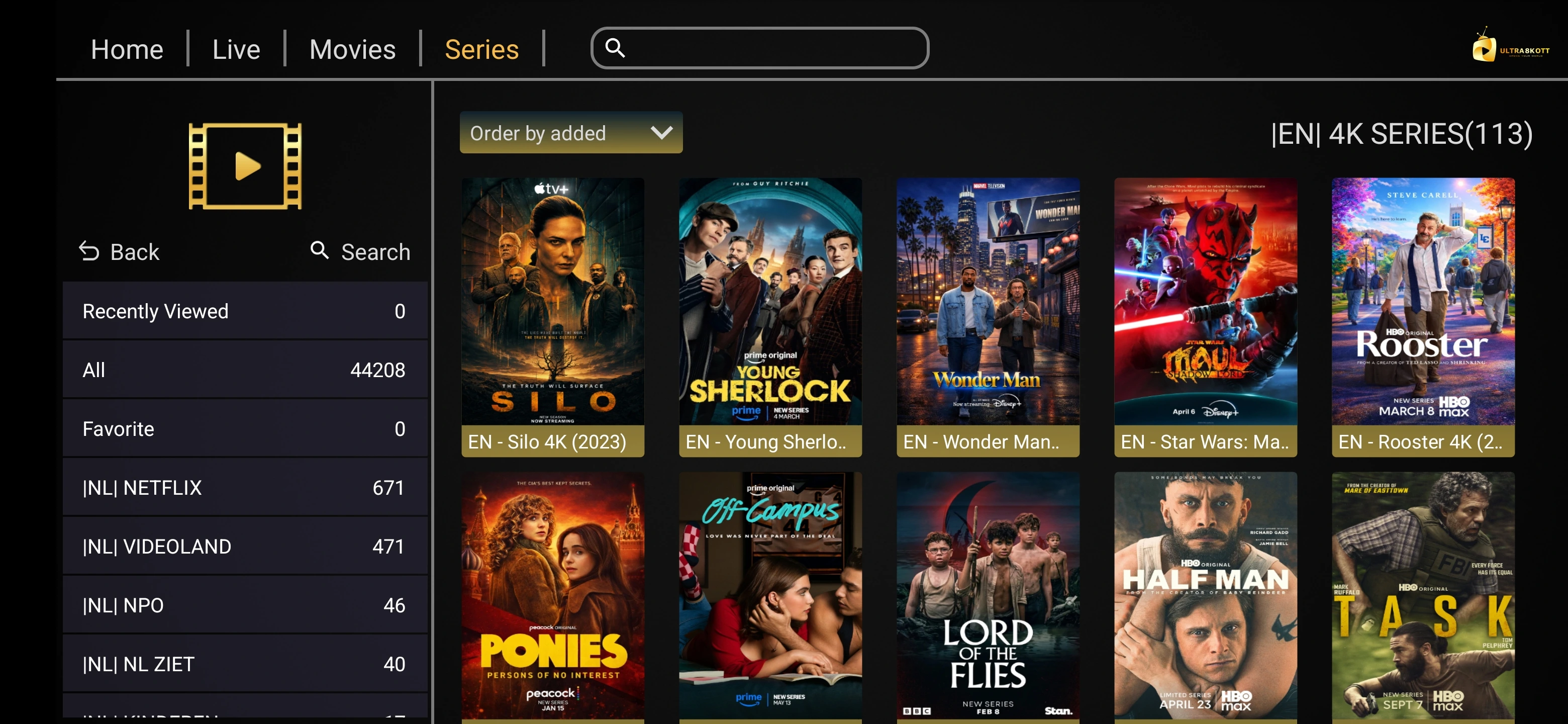
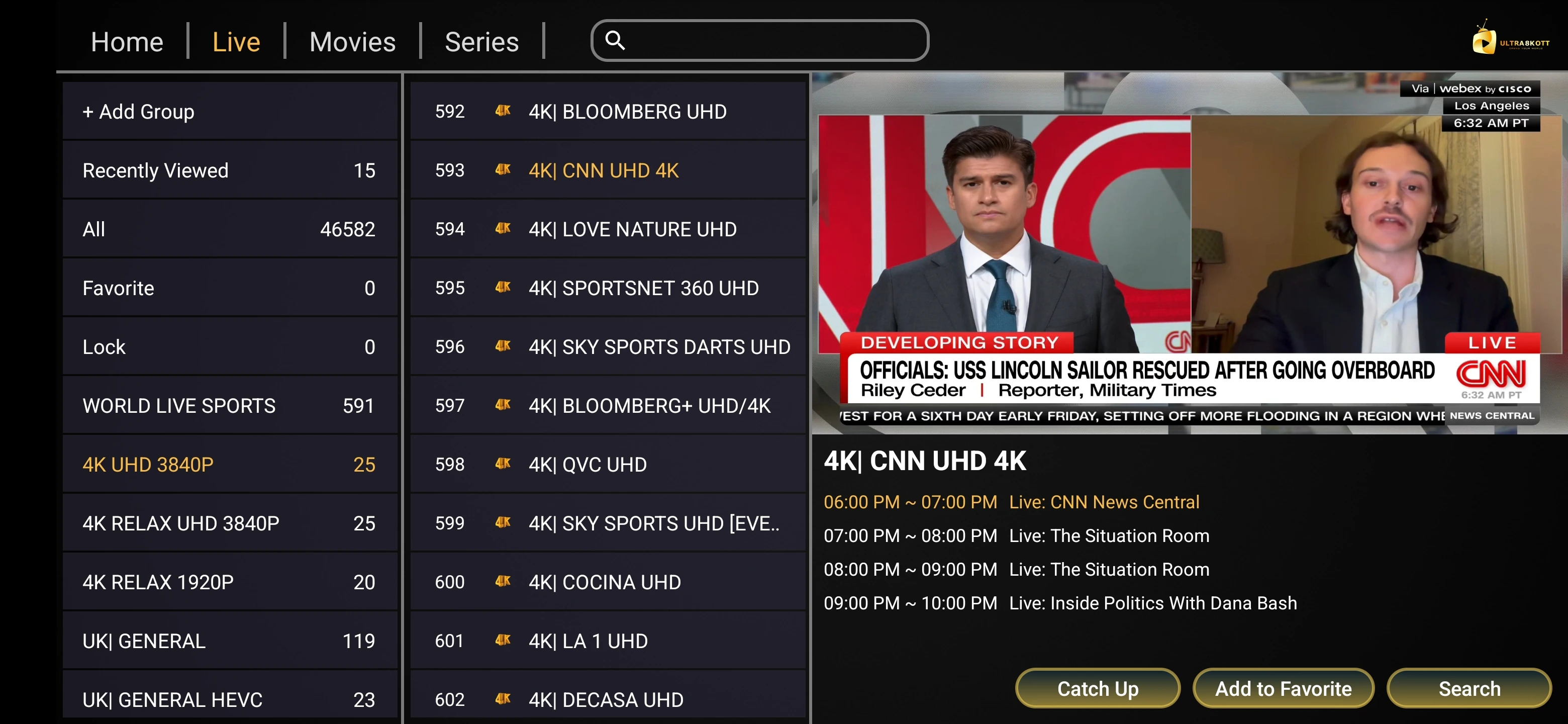
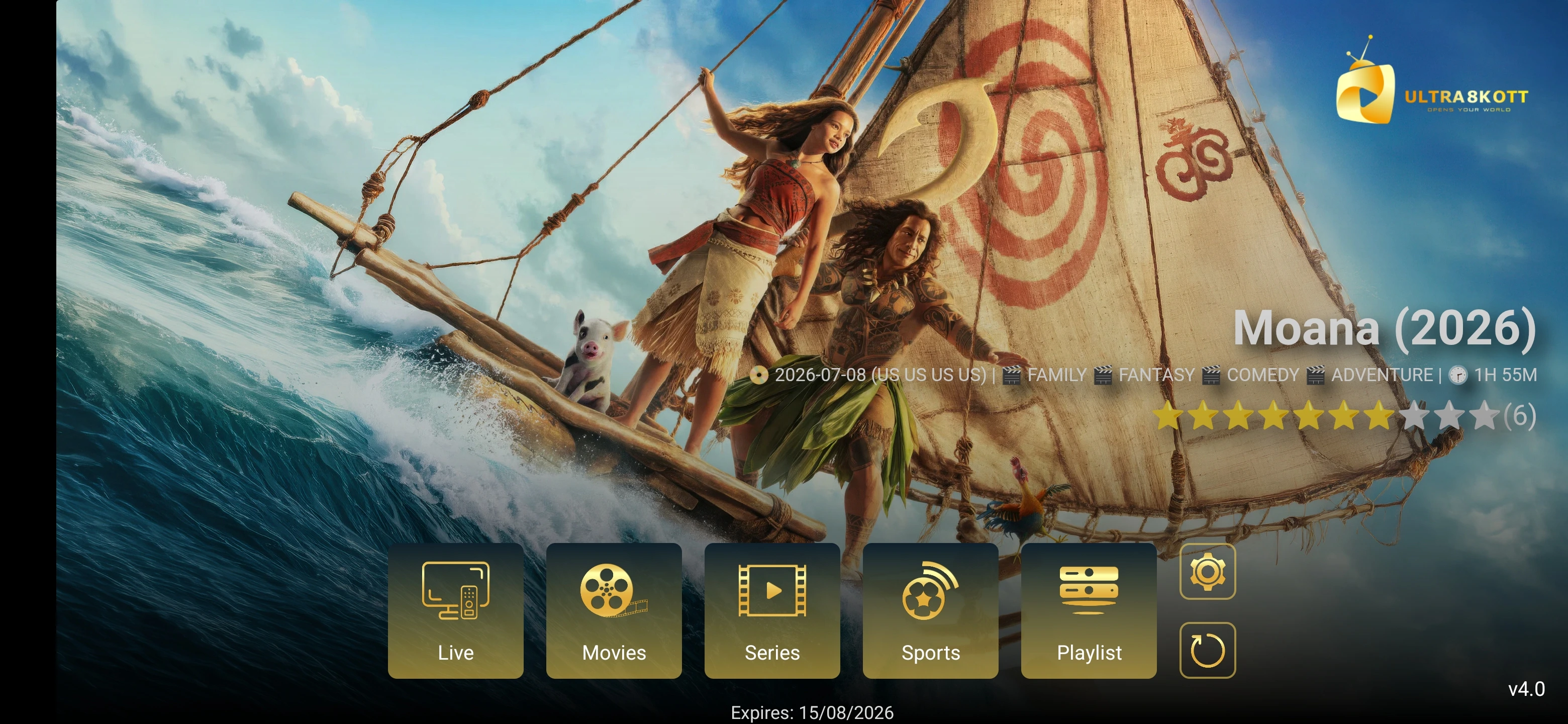
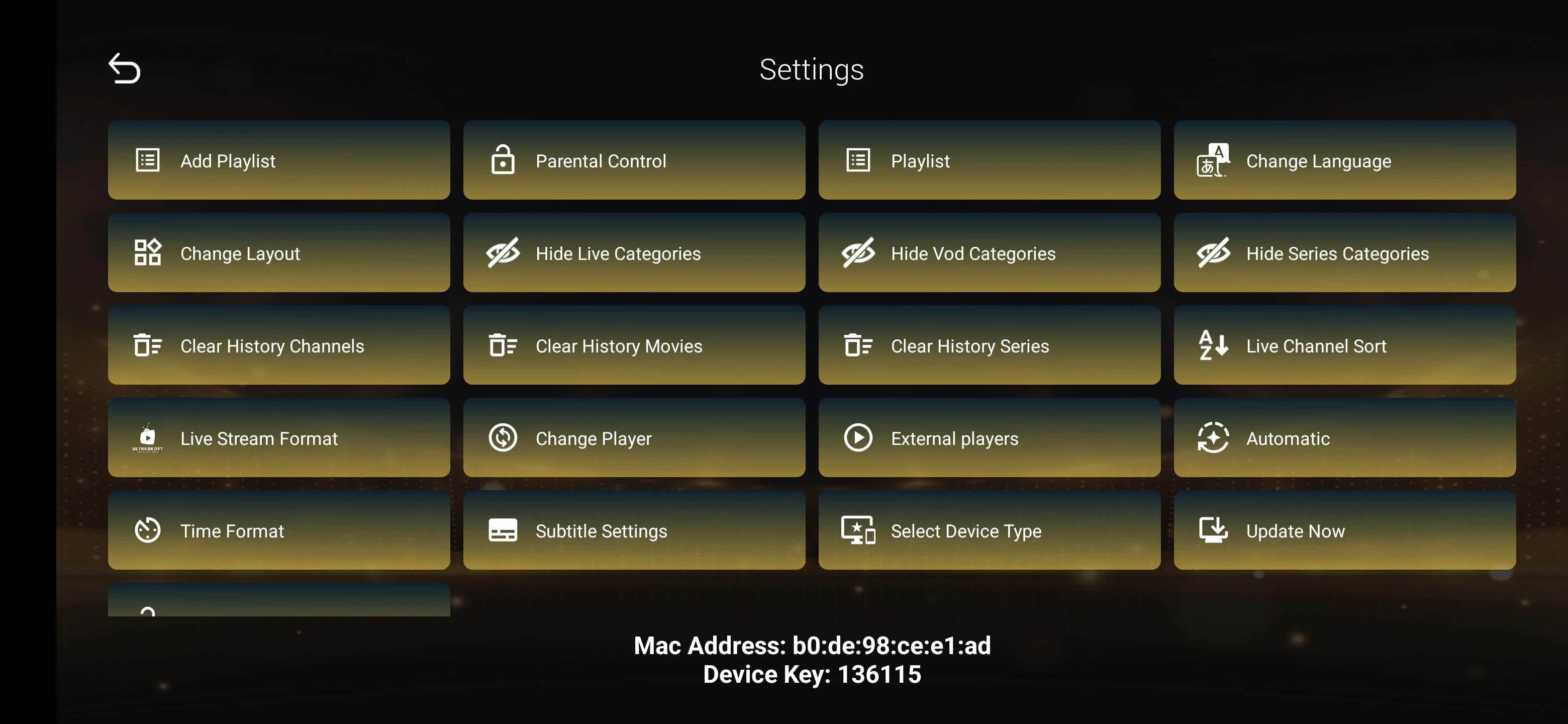
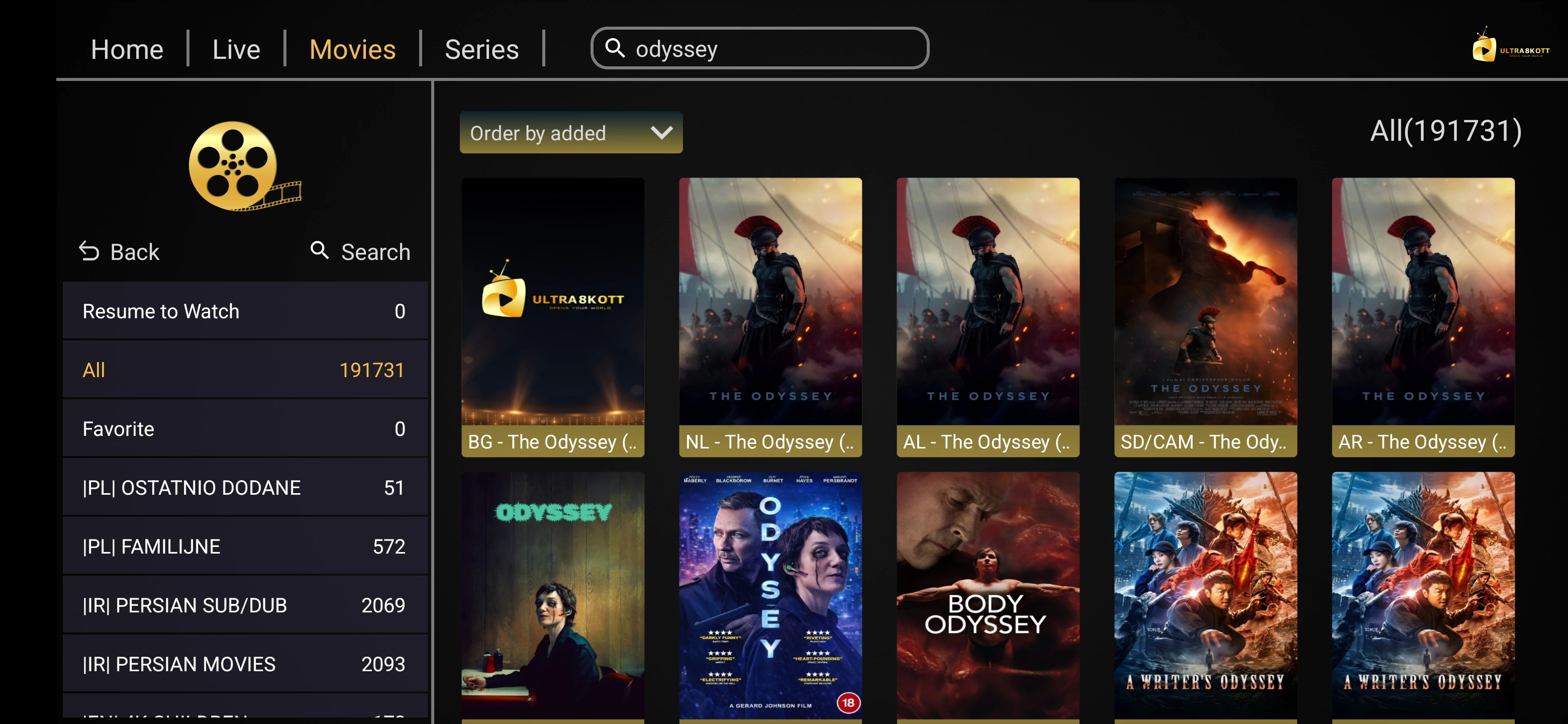
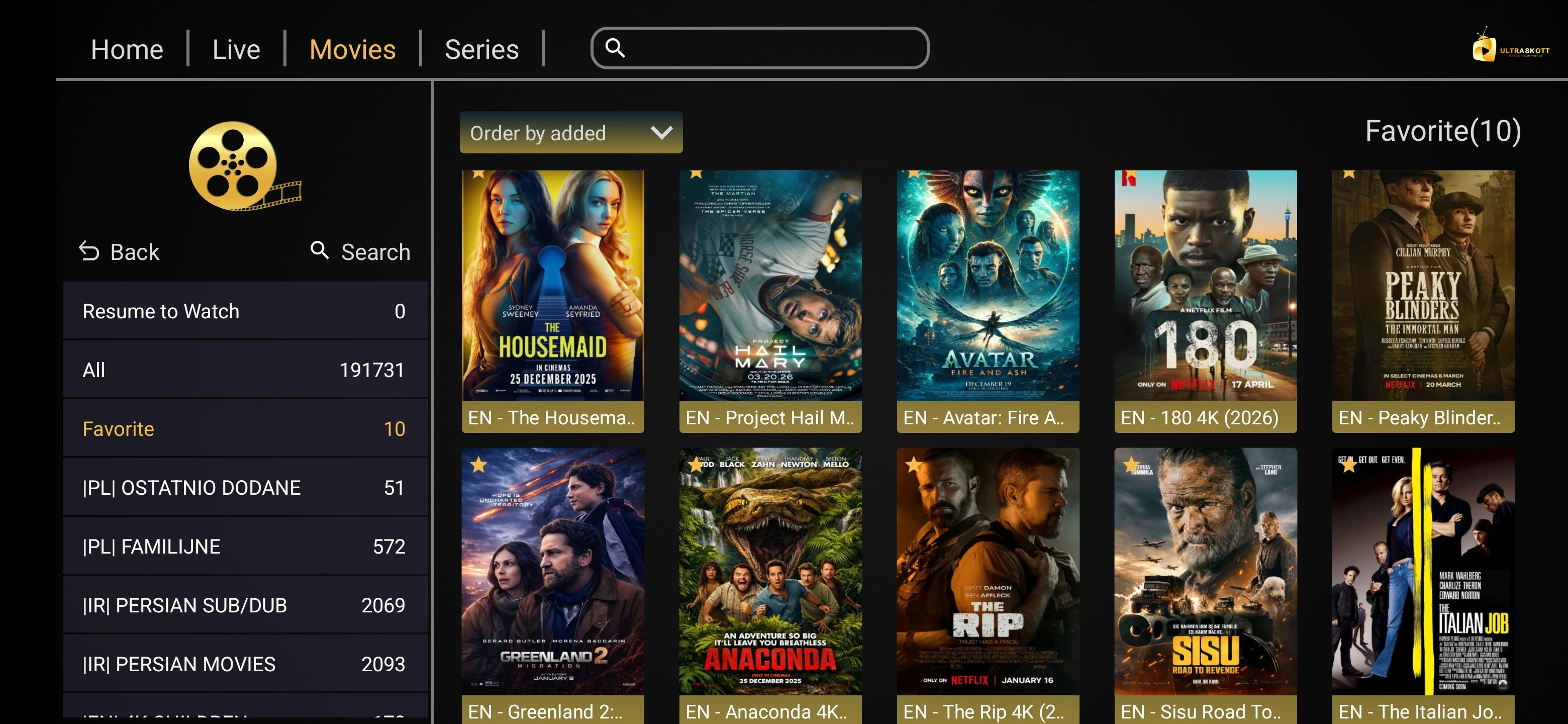
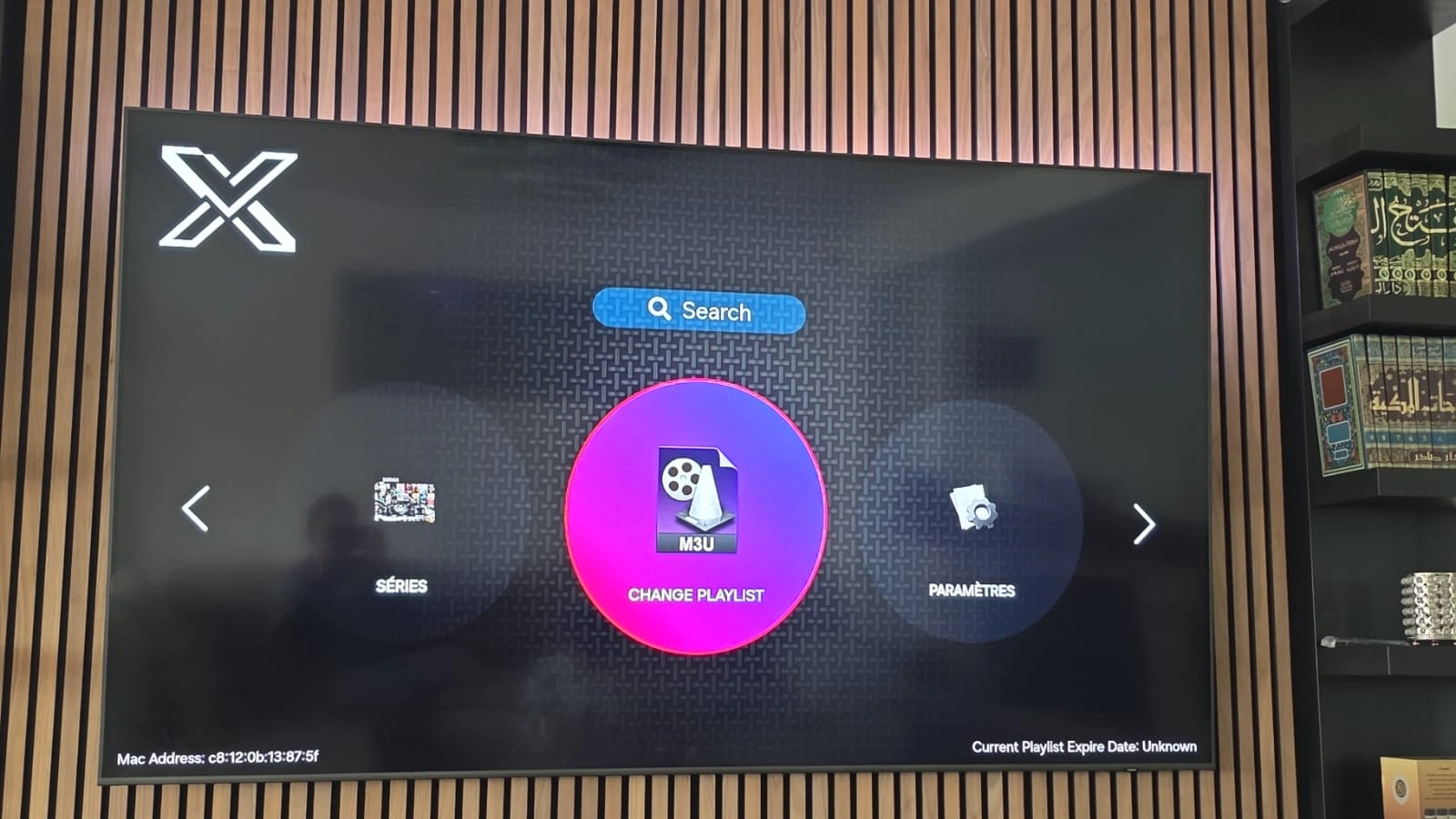
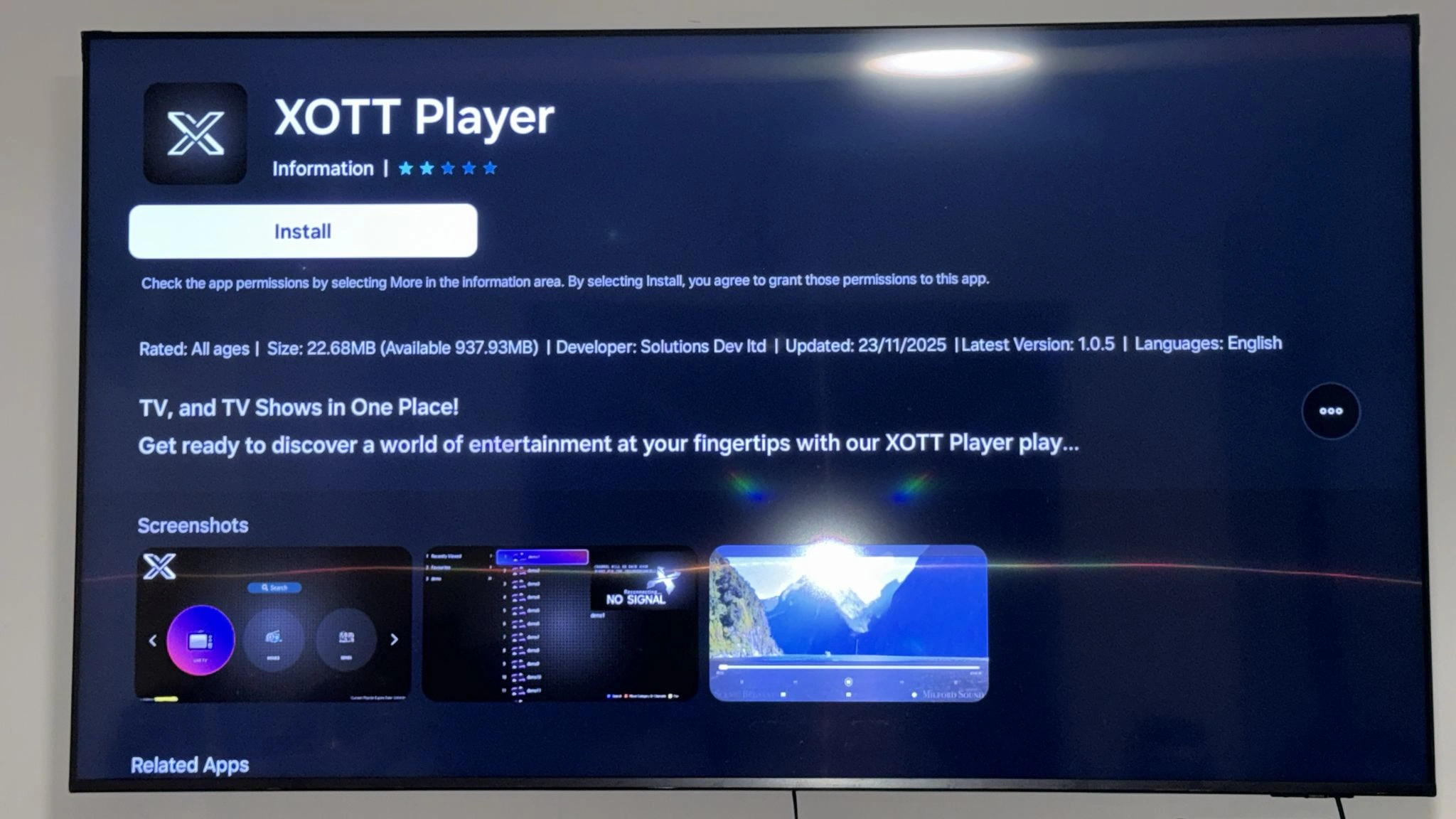
2. Install Ultra 8K OTT Player, XOTT Player or another compatible IPTV player if available.
3. Open the app and choose the supported login method.
4. Enter the server, username and password or playlist URL supplied with your account.
5. Save the account and wait for content to load.
Nvidia Shield Setup
1. Because Nvidia Shield uses Android TV, open Google Play on the Shield.
2. Install a compatible IPTV player available for the device.
3. Add the Ultra 8K IPTV account using the login method supported by that player.
4. Refresh the playlist and EPG, then test playback.
Samsung Smart TV Setup
1. Open Apps on the Samsung Smart TV.
2. Search for a compatible IPTV player available for your TV model and country.
3. Install and open the selected player.
4. Choose the supported account or playlist login method.
5. Enter your supplied Ultra 8K IPTV details and allow the playlist to load.
LG Smart TV Setup
1. Open the LG Content Store.
2. Search for a compatible IPTV player available for your WebOS version and region.
3. Install and open the app.
4. Add the subscription using the login or playlist option supported by the player.
5. Save the account and allow content and EPG data to refresh.
Android Phone & Tablet Setup
1. Open Google Play on your Android phone or tablet.
2. Install a compatible IPTV player supported by your device.
3. Open the player and select the appropriate account or playlist login method.
4. Enter the supplied subscription details.
5. Save the account and test live TV and VOD playback.
iPhone & iPad Setup
1. Open the Apple App Store.
2. Install a compatible IPTV player available for your iPhone or iPad.
3. Open the player and choose its supported account or playlist method.
4. Add the credentials or playlist URL provided with your subscription.
5. Save and refresh the available content.
Windows PC Setup
1. Install a compatible Windows IPTV application from a trusted source.
2. Open the player and choose the supported login or playlist option.
3. Enter the Ultra 8K IPTV account details exactly as supplied.
4. Save the profile, refresh the playlist and test playback.
Mac / macOS Setup
1. Install a compatible IPTV player that supports your current macOS version.
2. Open the player and add a new account or playlist.
3. Enter the supplied server/login details or M3U URL.
4. Save the profile and allow the content list to load.
MAG Box Setup
1. Open the system or server settings on your MAG device.
2. Locate the portal/server configuration used by your device model.
3. Enter the portal or account information supplied for your subscription.
4. Save the settings and restart the portal or device if required.
5. Allow the channel list to load and test playback.
Formuler Setup
1. Open the IPTV application supported by your Formuler device.
2. Add a new service profile.
3. Choose the portal, account or playlist method supported by the app.
4. Enter the details supplied with your Ultra 8K IPTV account.
5. Save and refresh the service list.
Enigma2 Setup
1. Install a compatible IPTV plugin supported by your Enigma2 receiver.
2. Add the account or playlist information supplied with your subscription.
3. Generate or refresh the available service/bouquet list if required by the plugin.
4. Restart the plugin or receiver and test playback.